
Learn Panda Forms · Lesson 2 of 10
Build a Classic Form
Create a classic form, write its title, edit and add fields, and publish it.
Published · 1:30
Put the Walkthrough into Practice
- 01Click Create Form, keep Classic and click Create.
- 02Click a field to edit its label, placeholder, options, Save in CRM and Required.
- 03Add field adds a new field; drag one beside another to share a row.
- 04In Settings, write the send button's text and turn on Labels.
Connect This Lesson to Your Website
Use this recording alongside your own dashboard and the current documentation. Check the result as a visitor before sharing it with clients. The interface may evolve after the recording.
Panda Academy
All videos and tutorialsContinue Learning
 Duration 1:20
Forms
Meet Panda Forms
Where Forms lives, the two kinds of forms, and how to find, preview, duplicate and track every form.
 Duration 2:00
Forms
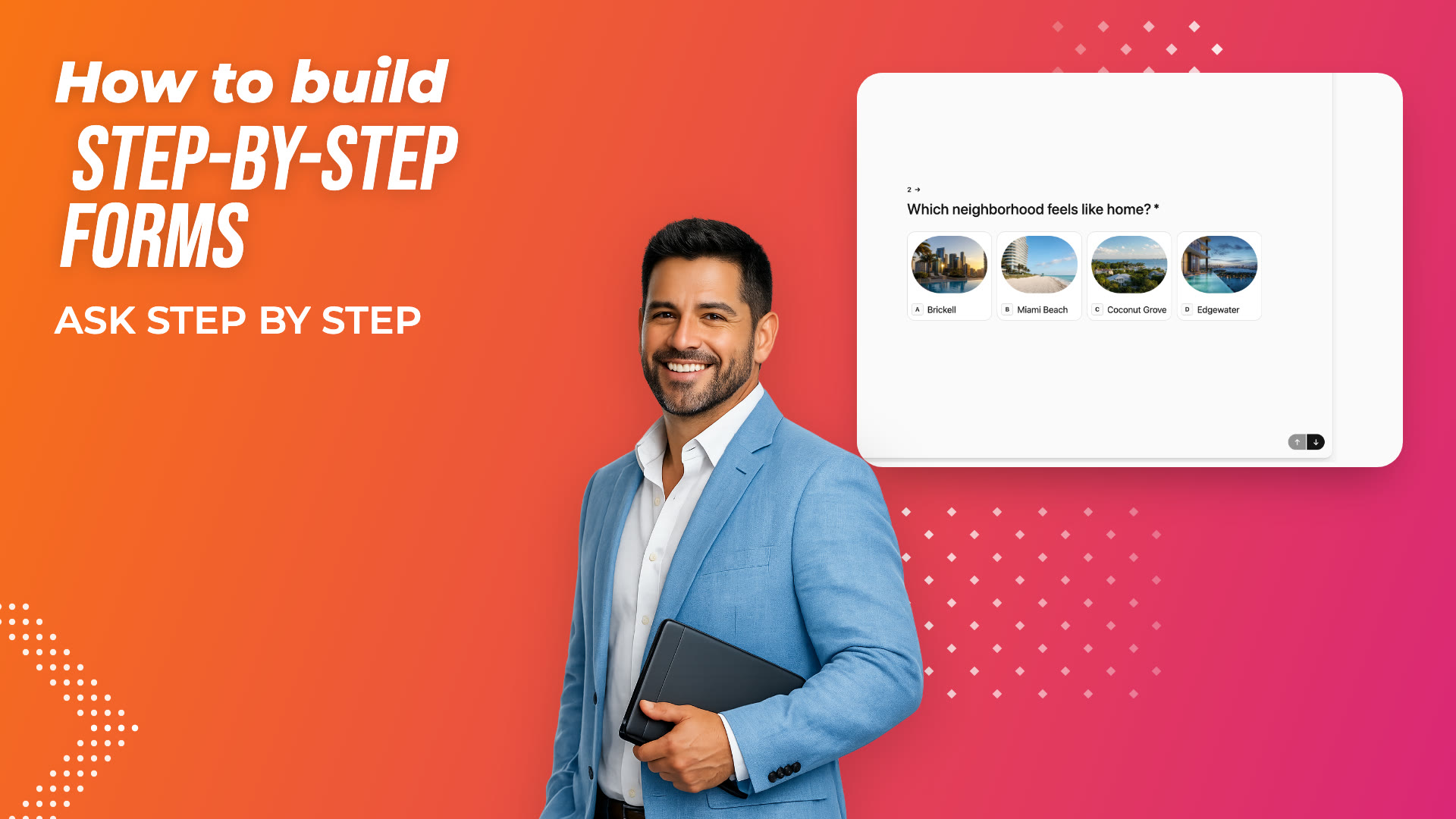
Build a Step-by-step Form
Build a form that asks one question at a time: welcome screen, picture choices, multiple choice, a date, contact info and an ending.
 Duration 1:34
Forms
Style and Share a Step-by-step Form
Give a step-by-step form its own look, publish it, and share its link.
Keep Exploring
Where This Feature Lives
AI Website BuilderBuild and edit your real estate website with MAIA, the Panda AI builder, or section by section in Edit Site. IDX search, Brand Kit and publishing included.Learn moreReal Estate CRMA real estate CRM that shows what each lead searched, viewed and saved on your website. Contacts, deals, campaigns and calendar for $49.99 a month.Learn moreIDX WebsitesIDX websites for Realtors with live MLS search, condo and new development pages, lead capture and your own domain. Plans from $69.99 a month.Learn more
Build the Site You Would Want to Search
Start today, or see it first with someone from our Miami team.