
Homepage Setup
Edit your Panda IDX homepage: customize hero images, agent bio, and add live sections with Website Elements (Studio Mode) — no code needed.
Your homepage at a glance
Your Panda IDX homepage is edited from two places: the dashboard (for hero images, bio, and search bar) and Website Elements on your live site (for adding and designing content sections while logged in — no coding needed).
Dashboard → Pages → Homepage controls your hero and bio. Log in to your member website and enable Studio Mode to add, reorder, and style content sections live.
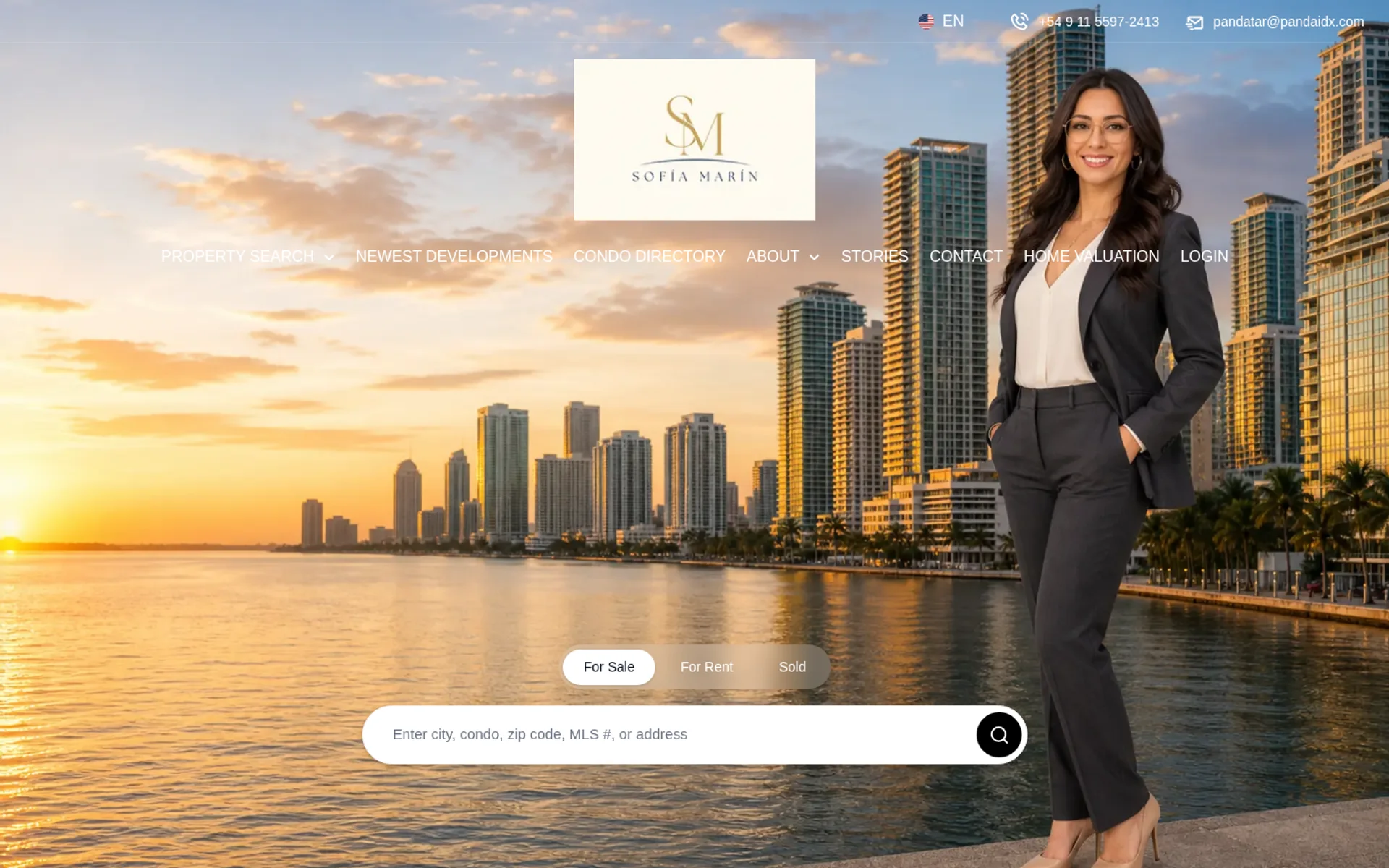
Edit your hero banner
The hero is the first thing visitors see: a full-width cover image, your headline, and the AI-powered property search bar.
Step 1: Open the homepage editor
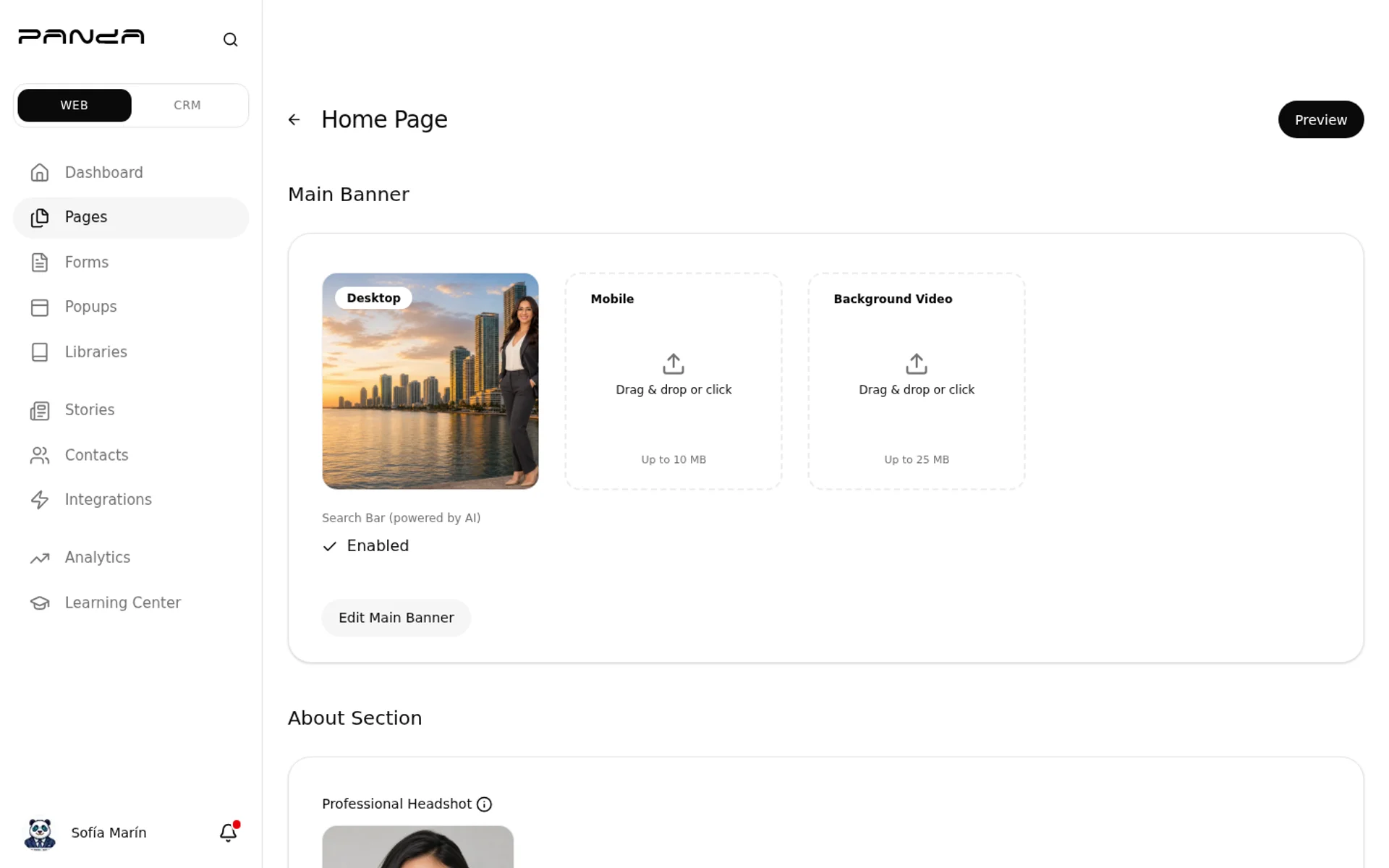
In the dashboard sidebar, click Pages, then click Home Page. You'll see the Main Banner and About Section cards, plus a Preview button in the top right.
Step 2: Upload your cover images
Click the Desktop upload area to drop in your desktop hero (1920×1080px recommended). Click Mobile for the mobile cover (1080×1080px). The third slot accepts a background Video (MP4, max 25MB).
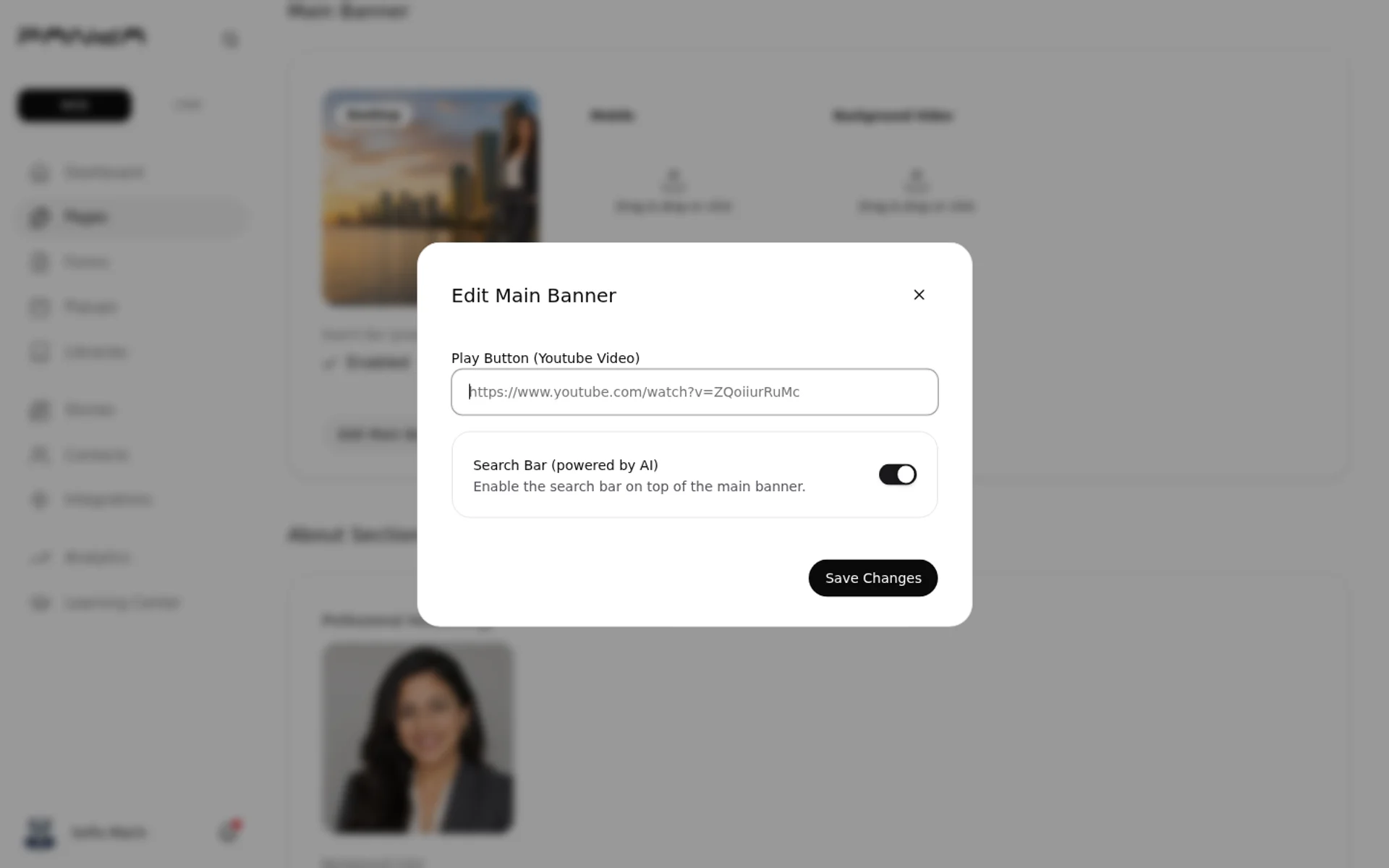
Step 3: Configure the search bar and YouTube video
Click Edit Main Banner. Toggle the Search Bar (powered by AI) on or off. Paste a YouTube URL in the Play Button field to add a play button overlay on your hero image.
Edit your About section
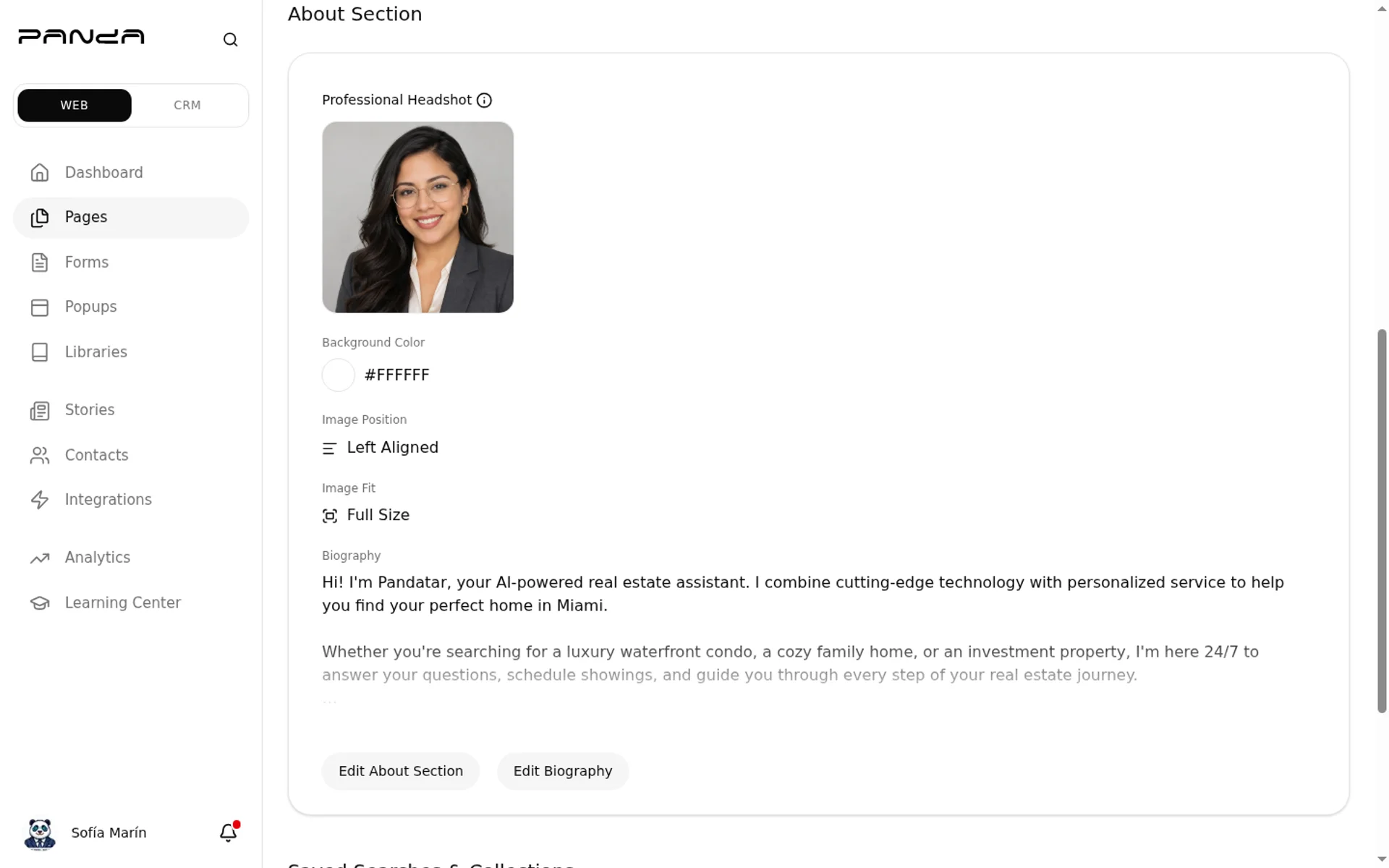
The About section shows your headshot and bio below the hero. You control the layout, background color, and copy independently from the hero.
Step 1: Review your current About section
Scroll down on the Homepage editor. See your headshot, background color, image position, image fit, and biography text in a single card.
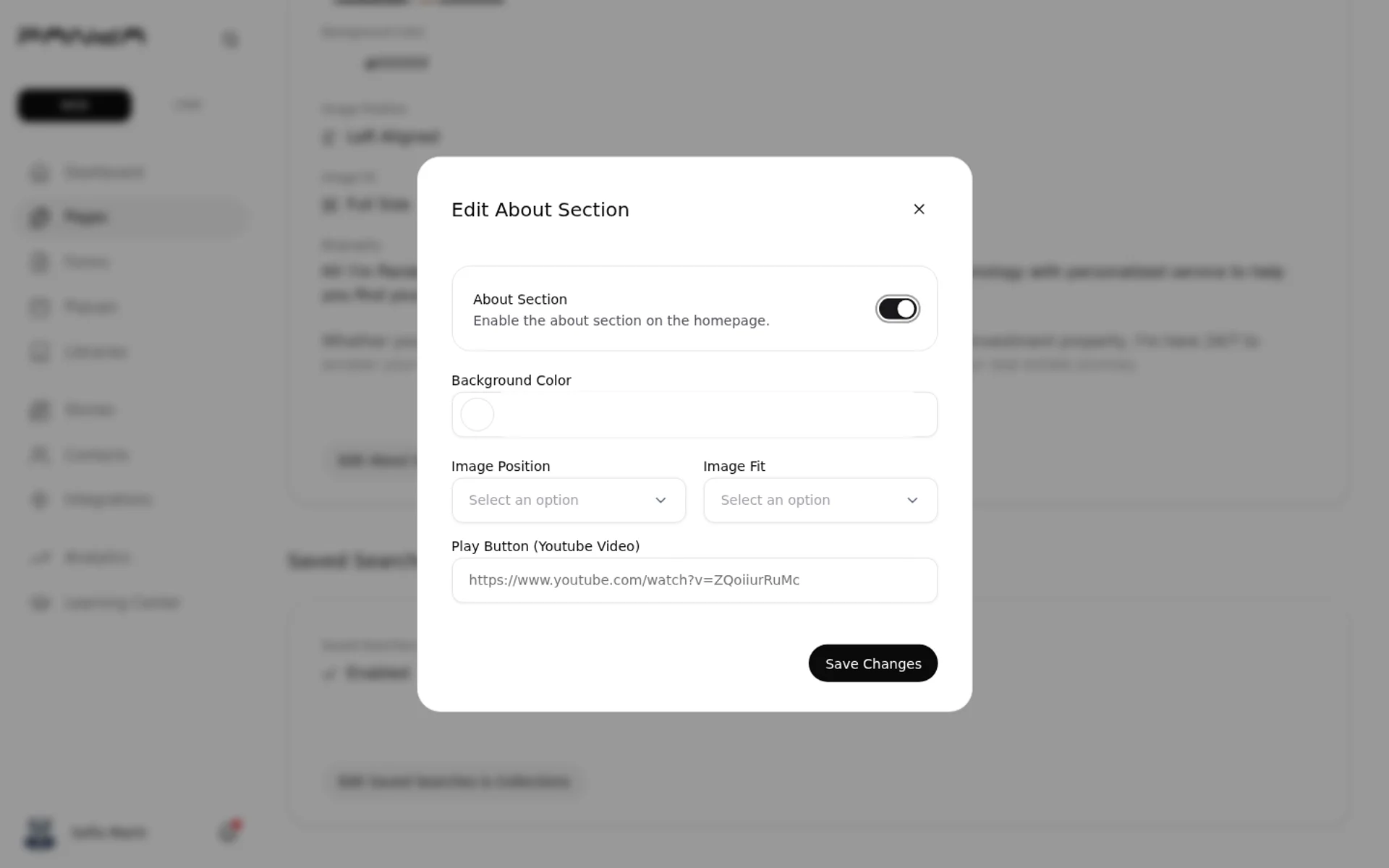
Step 2: Adjust layout and design
Click Edit About Section. Toggle the section on/off, pick a background color, choose image position (left or right), choose image fit (full size or with margin), and optionally add a YouTube video overlay.
Step 3: Write your biography
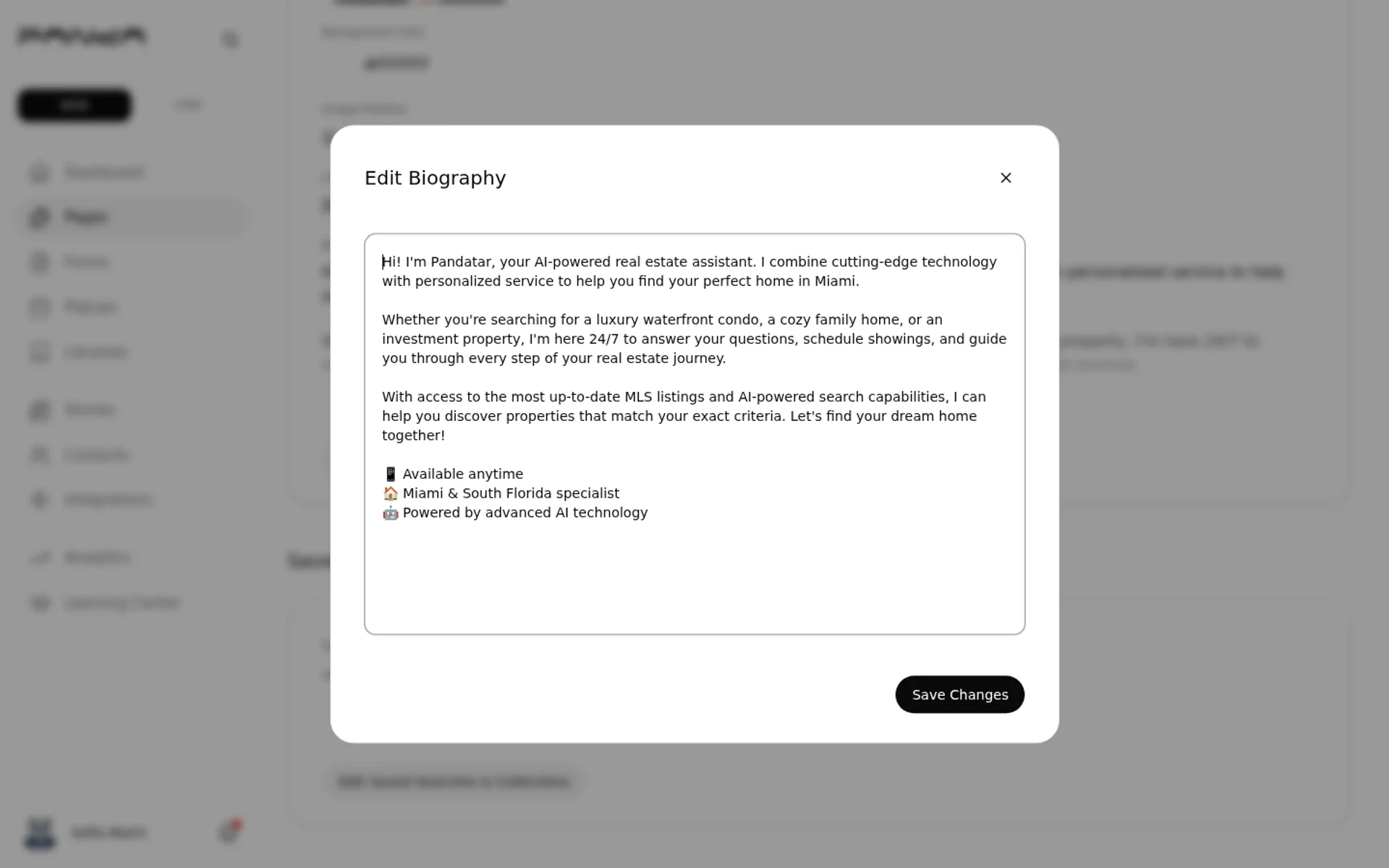
Click Edit Biography. Type or paste your bio into the textarea (keep it under 300 words, end with a call to action). Click Save Changes.
You can disable the About section entirely from Edit About Section → About Section toggle — useful if you're running a fully custom layout via Panda Studio. For a richer agent intro with credentials, videos, and client reviews, use the dedicated Profile Page.
Add sections with Website Elements
Website Elements (Studio Mode) lets you add, reorder, and style content sections directly on your live homepage while logged in — changes appear instantly without touching the dashboard.
Step 1: Log in and enable Studio Mode
Visit your Panda IDX member website and log in. Click your avatar in the top navigation. Toggle Studio Mode on in the dropdown. The page reloads with floating edit controls visible over each section.
Step 2: Add a new section
Scroll to where you want a new section. Click the + Add New Section button that appears between sections — the Add a section dialog opens. Pick a section type (Buildings Section is currently available) and the Continue button activates.
Step 3: Choose a layout template
Pick one of 8 templates — Grid, Carousel, Showcase, Container, Directory, Magazine, or Signature — from the visual template picker. Click Continue.
Show transcript
Open the Layout tab — every template is one click away. Carousel rotates listings. Showcase leads with one hero. Magazine reads editorial. Switch to Styles for color and shape. Tap a color — preview repaints, instantly.
Step 4: Set content source, design, and save
Choose your data source (buildings, saved search, or area). Enter a section title. Use the Design tab to set background color, border radius, and spacing. Click Save — the section goes live instantly.
Show transcript
Type a section title — this shows above the listings on your homepage. Open the Styles tab to control how the section looks on your homepage. Try Pill for capsule-shaped cards — a bolder look that really stands out. Spacious spreads the listings apart for a cleaner, less crowded layout. Save publishes the new section live on your homepage instantly.
While Studio Mode is active, use the ↑ ↓ arrows on each section toolbar to reorder sections. Use the trash icon to remove a section — it can always be re-added.
Frequently asked questions
Can I change my homepage hero image without coding?
Yes. Go to Dashboard → Pages → Homepage and click the desktop or mobile upload area. Drop in a photo directly from your device — no developer or FTP access needed.
How do I add my agent bio and headshot?
In Dashboard → Pages → Homepage, scroll to About Section. Click Edit About Section to upload your headshot and configure layout. Click Edit Biography to write your bio. Both save independently.
What sections can I add with Website Elements?
Currently you can add Buildings Sections with 8 layout templates: Grid, Carousel, Showcase, Container, Directory, Magazine, and Signature. Each supports a custom background color, border radius, spacing, card gap, and 5 hex color overrides for section bg, card bg, card border, and text colors.
Will homepage changes affect my property search results?
No. Homepage layout edits are completely separate from your IDX search configuration. Repositioning the search bar only changes where it appears visually — search filters and listing data are unaffected.
How do I embed a YouTube video on my homepage?
Go to Dashboard → Pages → Homepage → Edit Main Banner → paste your YouTube URL in the Play Button (Youtube Video) field. A play button overlay appears on your hero. For a video intro on your headshot, use Edit About Section → Play Button field.