Contact Page: Background Image & Lead Form
Set up your Panda IDX contact page: upload a background image and connect a lead form that routes every submission directly to your CRM — no coding needed.
What the Contact Page does
Your Contact Page is a focused, single-screen space: a full-height background image on the left and a lead capture form on the right. Visitors see the complete page without scrolling — no map, no address block, no social feed. Just your best image and a clear invitation to reach out.
Dashboard → Pages → Contact Page: one setting — the background image. The contact form is managed separately in Forms and automatically appears on the right side of the page.

Upload your background image
The background image is the only setting in the Contact Page dashboard editor — and it carries the visual weight of the page.
Step 1: Open the Contact Page editor
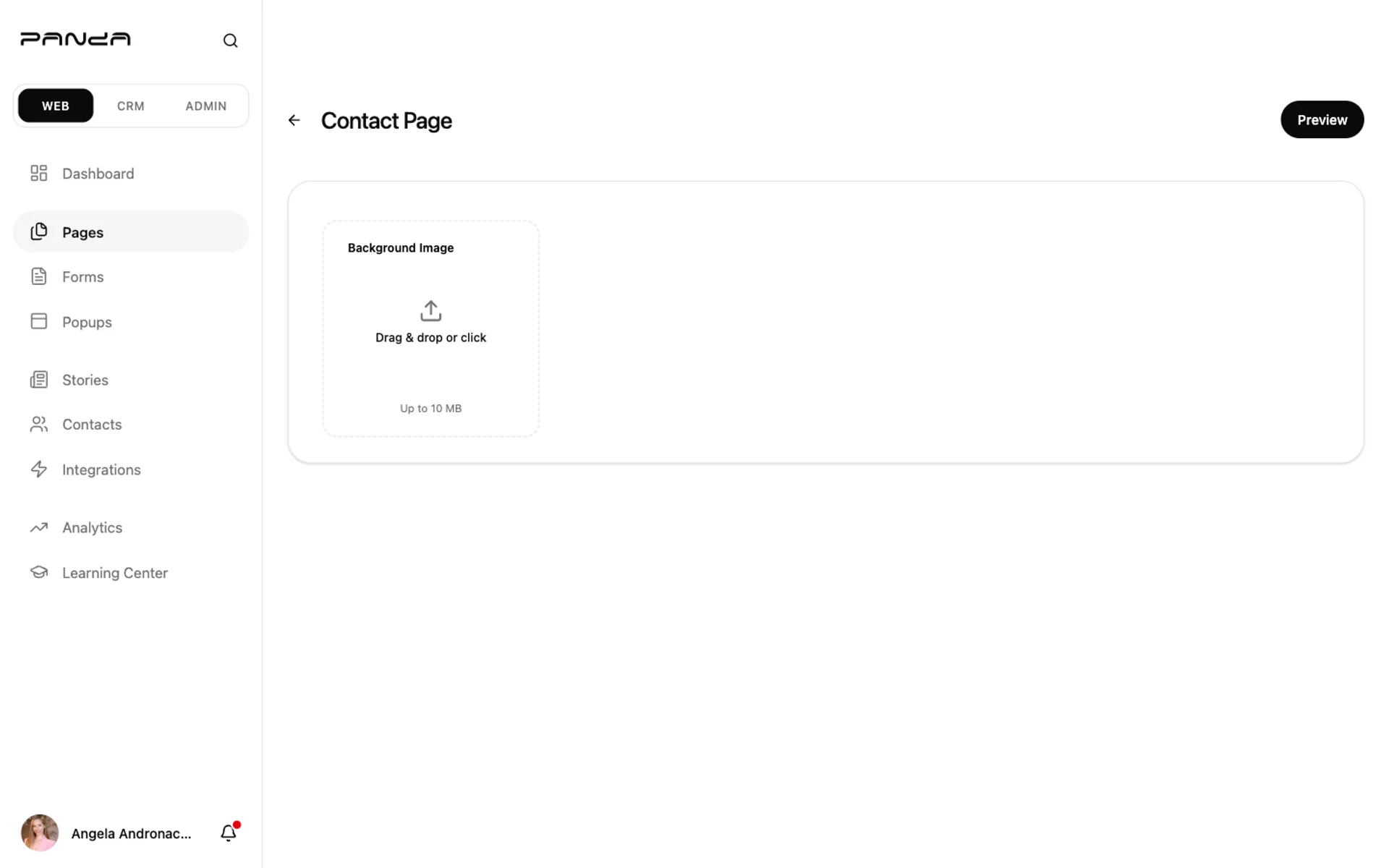
In the dashboard sidebar click Pages, then click Contact Page. The editor shows a single Background Image upload card and a Preview button in the top-right.
Step 2: Upload your photo
Click the upload area (or drag and drop). Any JPG or PNG up to 10 MB works. The image fills the entire left half of the live contact page — full height, no crop constraints.

Step 3: Preview the result
Click Preview to open your live contact page. Verify the image fills the left panel cleanly and the form appears on the right.
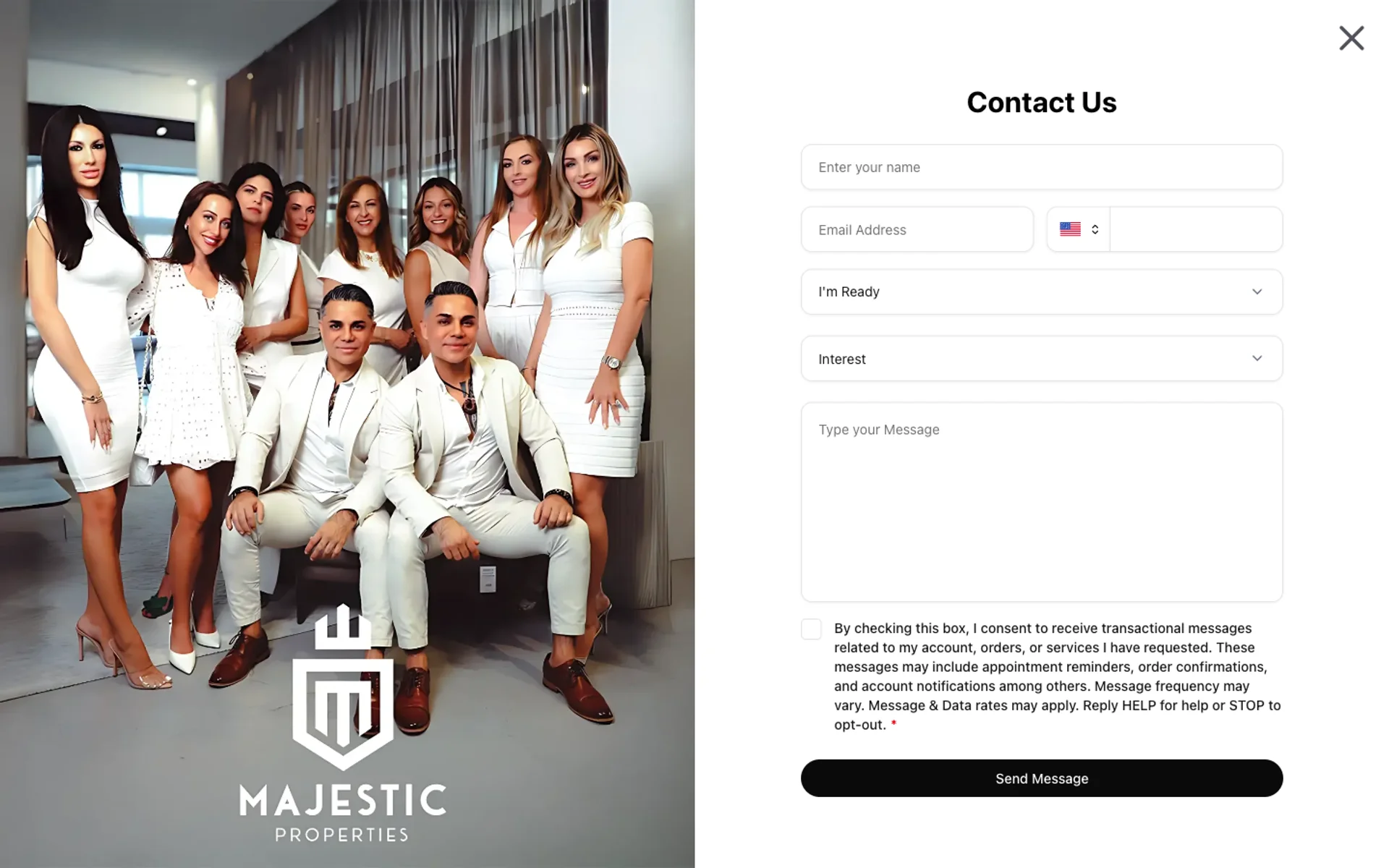
Use a landscape or portrait photo that works at full height. Team photos, luxury property shots, and lifestyle images all work well. Avoid images with important content near the edges — the left panel crops to fill the viewport height.
Your contact form
The form on the right side of the page is not configured in the Contact Page editor. It's built and managed in the Forms builder, then automatically assigned to the contact page slot.
The default form includes:
| Field | Type | Goes to CRM? |
|---|---|---|
| Name | Text (required) | ✅ contacts.name |
| Email (required) | ✅ contacts.email | |
| Phone | Phone + country picker | ✅ contacts.phones[] |
| I'm Ready | Dropdown (timeline) | ✅ Additional fields |
| Interest | Dropdown (buy/sell/rent) | ✅ Additional fields |
| Message | Textarea | ✅ Inbox only |
| SMS consent | Checkbox (required) | Consent only |
To add, remove, or relabel fields — or to replace the default form entirely — go to Forms in the dashboard.

What visitors see and how leads flow
When a visitor submits your contact form, Panda IDX handles the entire lead pipeline automatically — no Zapier, no third-party CRM webhook setup required.
Step 1: Visitor fills and submits the form
The form validates in the browser. On submit, a "Message sent successfully!" toast confirms receipt. No page redirect.

Step 2: Lead appears in your CRM instantly
Panda IDX creates a contact record (stage: new-lead) in your dashboard, adds an inbox message with the full form response, sends you an email notification, and logs the visitor's UTM source and page analytics — all in one transaction.
Frequently asked questions
What should I put on my real estate contact page?
One compelling background image and a working lead form. The default form captures name, email, phone, timeline readiness, and a message — enough for a lead to identify themselves without friction. Every extra required field you add reduces submission rates, so keep it lean.
Can I customize the contact form?
Yes. Go to Forms in your dashboard to edit field labels, add or remove inputs, and control which fields are required. Any form you assign to the "contact" placement appears automatically on your contact page.
How do I add a map to my contact page?
The contact page uses a split layout — your image on the left, the form on the right. There's no dedicated map embed. To show your office location, add your address to your site footer via General Settings, or add a location field to your contact form.
Will contact form leads go to my CRM automatically?
What office hours should I list on my real estate website?
The contact page doesn't have an office hours field. Add your hours to your site footer via General Settings, or add a "Best time to reach me" dropdown to your contact form in the Forms builder. List hours you'll actually answer — not aspirational availability.