
Area Libraries
Create SEO-optimized neighborhood and area pages on your Panda IDX website to rank for hyperlocal real estate searches — no coding needed.
What are Area Libraries?
Area Libraries are collections of neighborhood pages published on your Panda IDX website. Each library groups the areas you serve — cities, neighborhoods, or themed markets — into a single SEO-structured page that ranks for hyperlocal searches like "Miami Beach condos for sale" or "Coral Gables homes."
Unlike generic listing searches, area pages combine live MLS inventory with a curated presentation of your local expertise. Every library is connected to your data feed, so listings stay current without manual updates.
TL;DR: Area Libraries let you build neighborhood pages that showcase your market knowledge, pull in live MLS listings, and rank for "[neighborhood] homes for sale" searches — all without writing a line of code. Create a library, pick your neighborhoods, and choose where it appears on your site.
When to use it
City or county coverage
School district focus
Waterfront or luxury markets
Multiple markets
How to create an Area Library
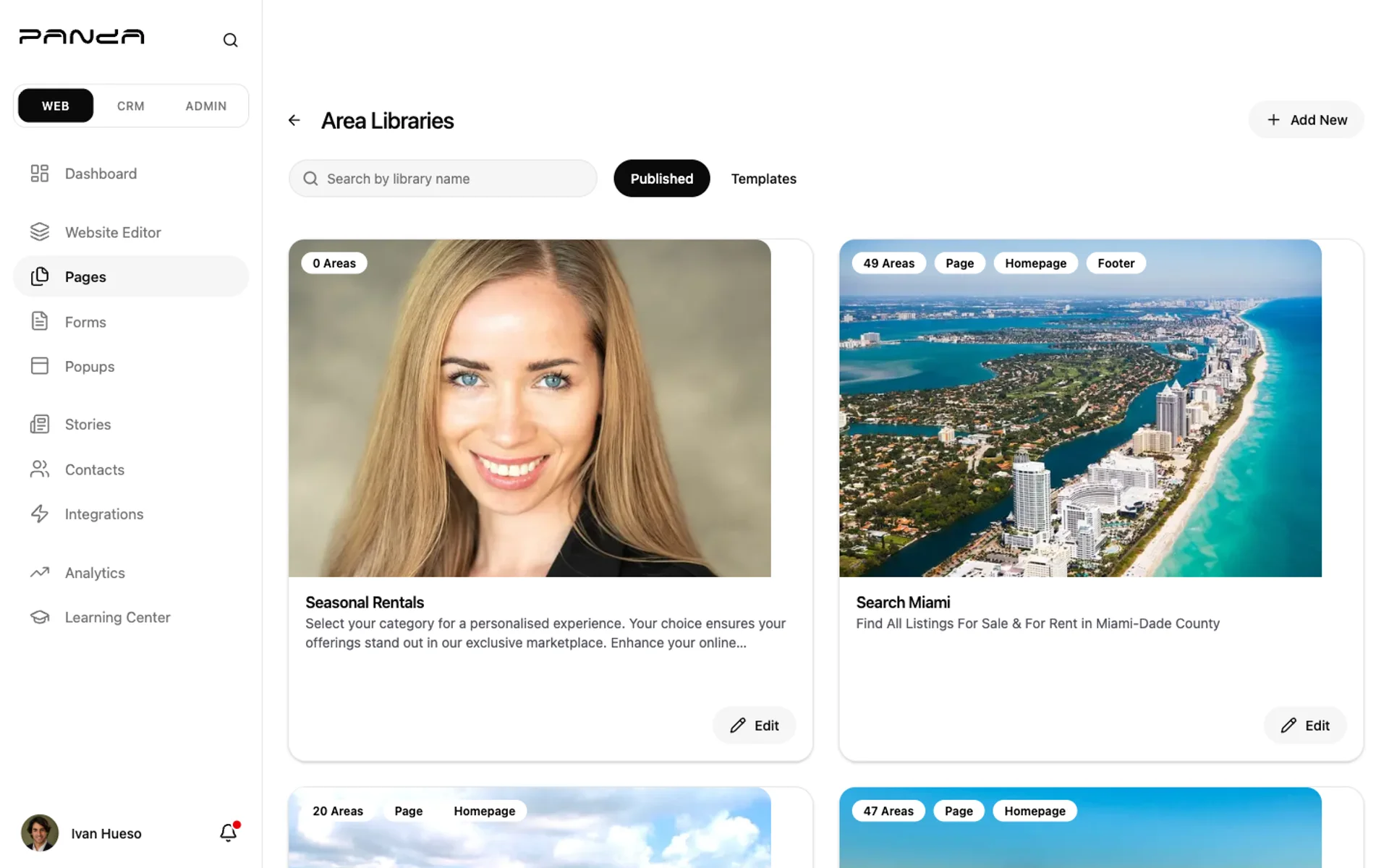
Step 1: Open Area Libraries and click Add New
In your dashboard sidebar, click Pages, then Area Libraries. Click + Add New in the top right to open the creation dialog.
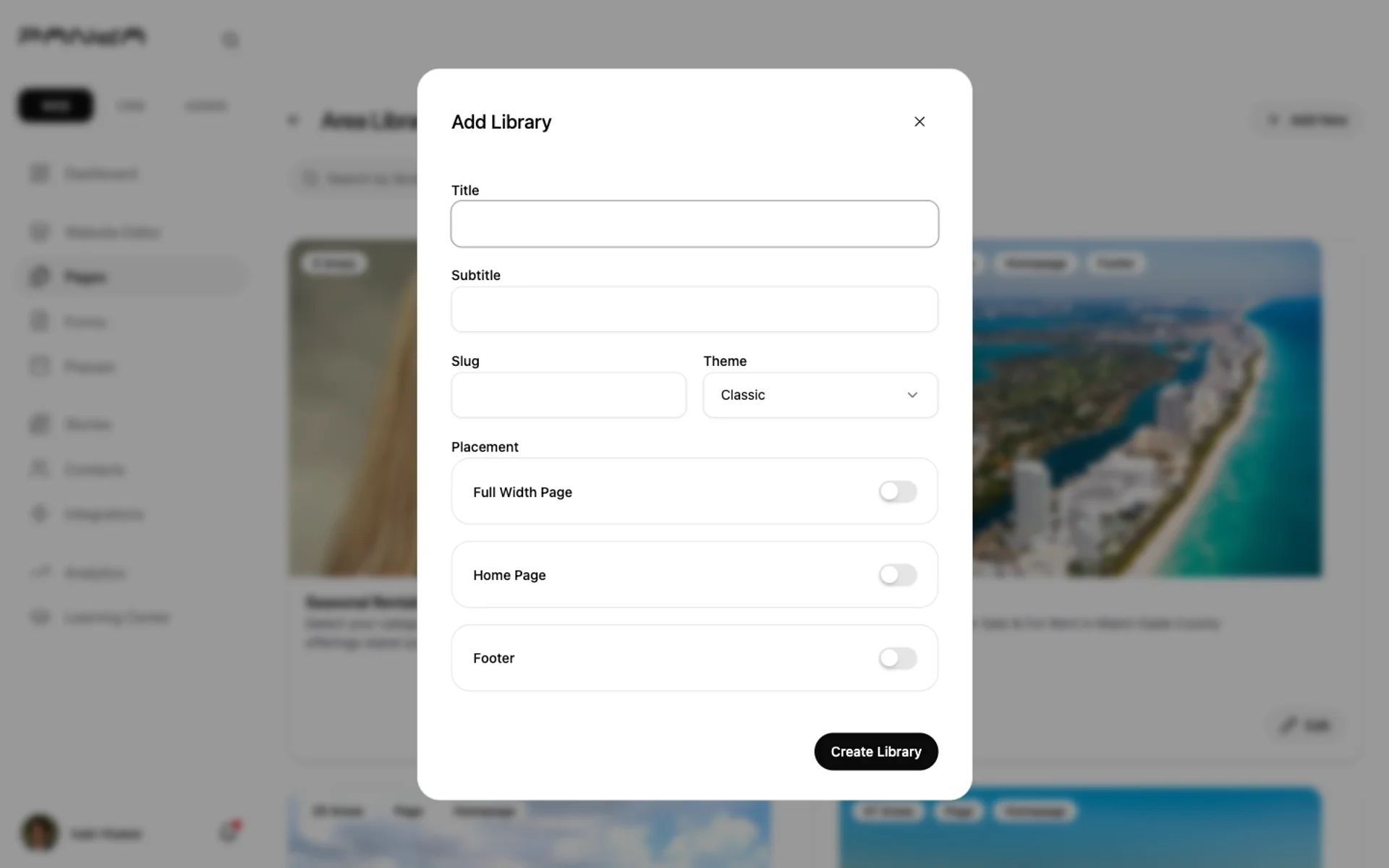
Step 2: Fill in the library details
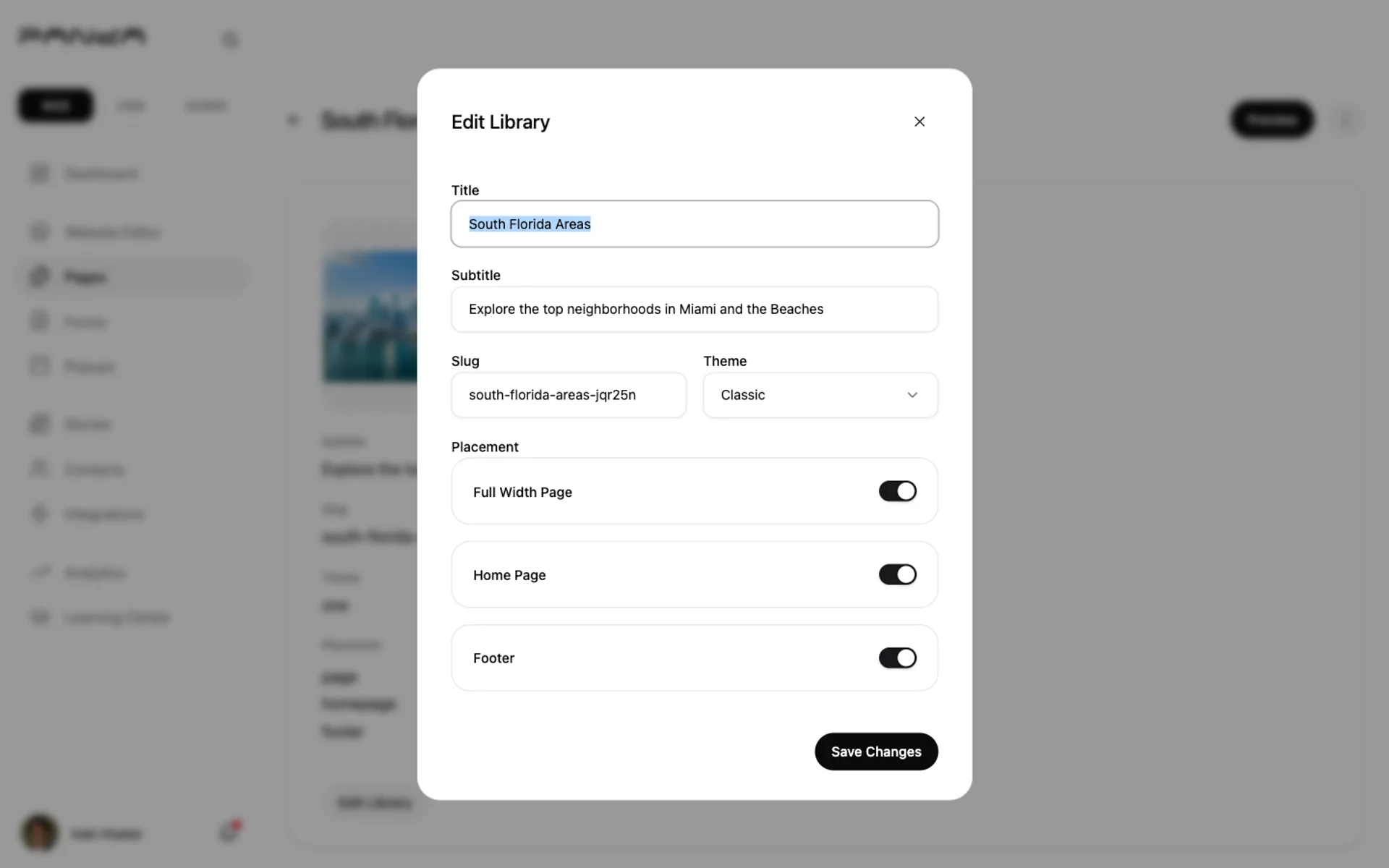
Enter a Title (required) and optional Subtitle. The Slug auto-fills from the title — edit it to include your target keyword (e.g., miami-beach-neighborhoods). Pick a Theme and toggle the Placements where this library will appear.
How to add areas to your library
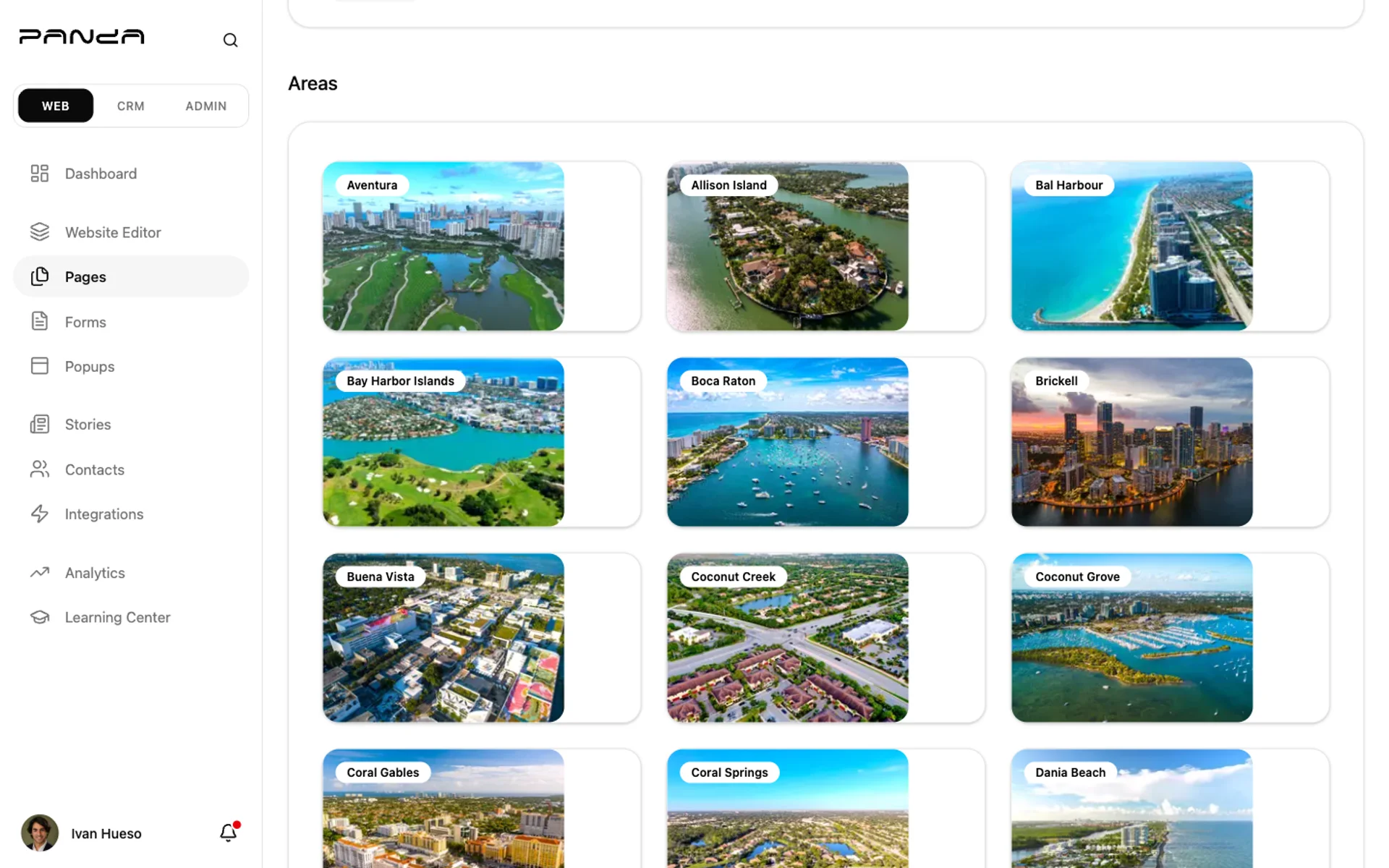
Step 1: Open your library and review the areas grid
Click Edit on any library card to open the library editor. Scroll past the metadata card to the Areas section. Your currently selected neighborhoods display as photo cards pulled from your MLS data feed.
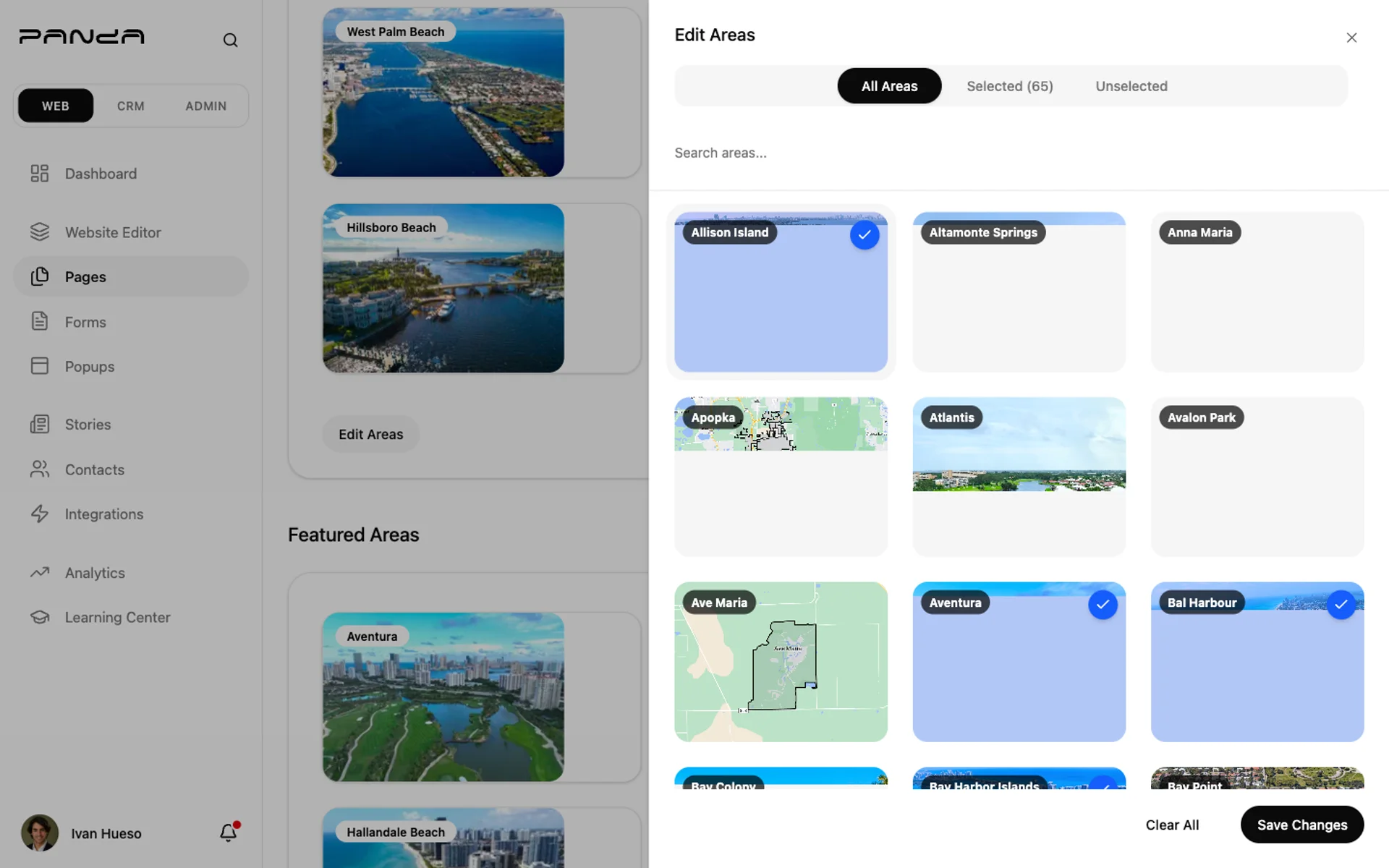
Step 2: Select neighborhoods from your MLS feed
Click Edit Areas. A slide-out panel opens with three tabs: All Areas, Selected, and Unselected. Select the neighborhoods you want — they highlight in blue. Use the search bar to find a specific area by name. Click Save Changes.
Step 3: Configure placements and Featured Areas
Click Edit Library to update the title, theme, or placements. If you enable the Home Page or Footer placement, an Edit Featured Areas section appears — select the neighborhoods you want to highlight in those spots (a curated subset of your full library).
Tips & gotchas
Slug = your SEO URL. The slug becomes yoursite.com/areas/[slug]. Use hyphens, lowercase, and your primary keyword (e.g., coral-gables-neighborhoods instead of the auto-generated coral-gables-areas-abc123). You can only update it from the Edit Library dialog.
Featured Areas appear only with Home Page or Footer placements. If you don't see the Featured Areas section, go to Edit Library and enable at least one of those placements first.
Template libraries are read-only. Switch to the Templates tab on the Area Libraries list to browse pre-built libraries you can duplicate into your account. Editing starts after you duplicate.
Areas come from your MLS feed. Available neighborhoods are pulled from your active data feeds — you can only select areas that already exist in your feed. Contact support if a neighborhood you serve isn't listed.
Frequently asked questions
How do area pages help with SEO?
Area pages give your IDX website dedicated, keyword-rich content for every neighborhood you serve. Each page targets location-specific searches like "homes for sale in [neighborhood name]," signals geographic relevance to Google, and builds topical authority over time — all of which can improve your ranking for hyperlocal buyer queries.
Can I create multiple area libraries?
Yes. Panda IDX lets you build unlimited area libraries, each representing a different market, city, or themed neighborhood collection. Each gets its own URL and can appear independently on your site — in your header, homepage, footer, or all three.
Do area pages show live listings automatically?
Yes. Each area library is connected to your IDX feed, so the listings section updates in real time as properties come on and off the market. Visitors see current inventory alongside your neighborhood content — no manual updates needed.
What is the difference between Areas and Featured Areas?
Areas is the full list of neighborhoods in your library — all visible on the dedicated area library page. Featured Areas is a curated subset you highlight in your homepage or footer widget. Featured Areas only appears when the Home Page or Footer placement is enabled.
Why don't I see a neighborhood I want to add?
Available neighborhoods come from your active MLS data feeds. If a specific area isn't listed in the Edit Areas panel, it likely isn't included in your current feed. Reach out to Panda IDX support to request a feed expansion for your market.