
Profile Page: Bio, Reviews, Videos & Quote
Build your Panda IDX agent profile page: upload a headshot, write your bio, embed YouTube videos, and showcase client reviews — with a live example.
What your Profile Page shows
Your Profile Page is the dedicated space where visitors learn who you are: a professional headshot, your bio, credentials, social links, a personal quote, YouTube videos, and client reviews. It's the page that turns curious browsers into qualified leads.
Path: Dashboard → Pages → Profile. The page renders publicly at /profile on your member website (e.g., yoursite.com/profile).
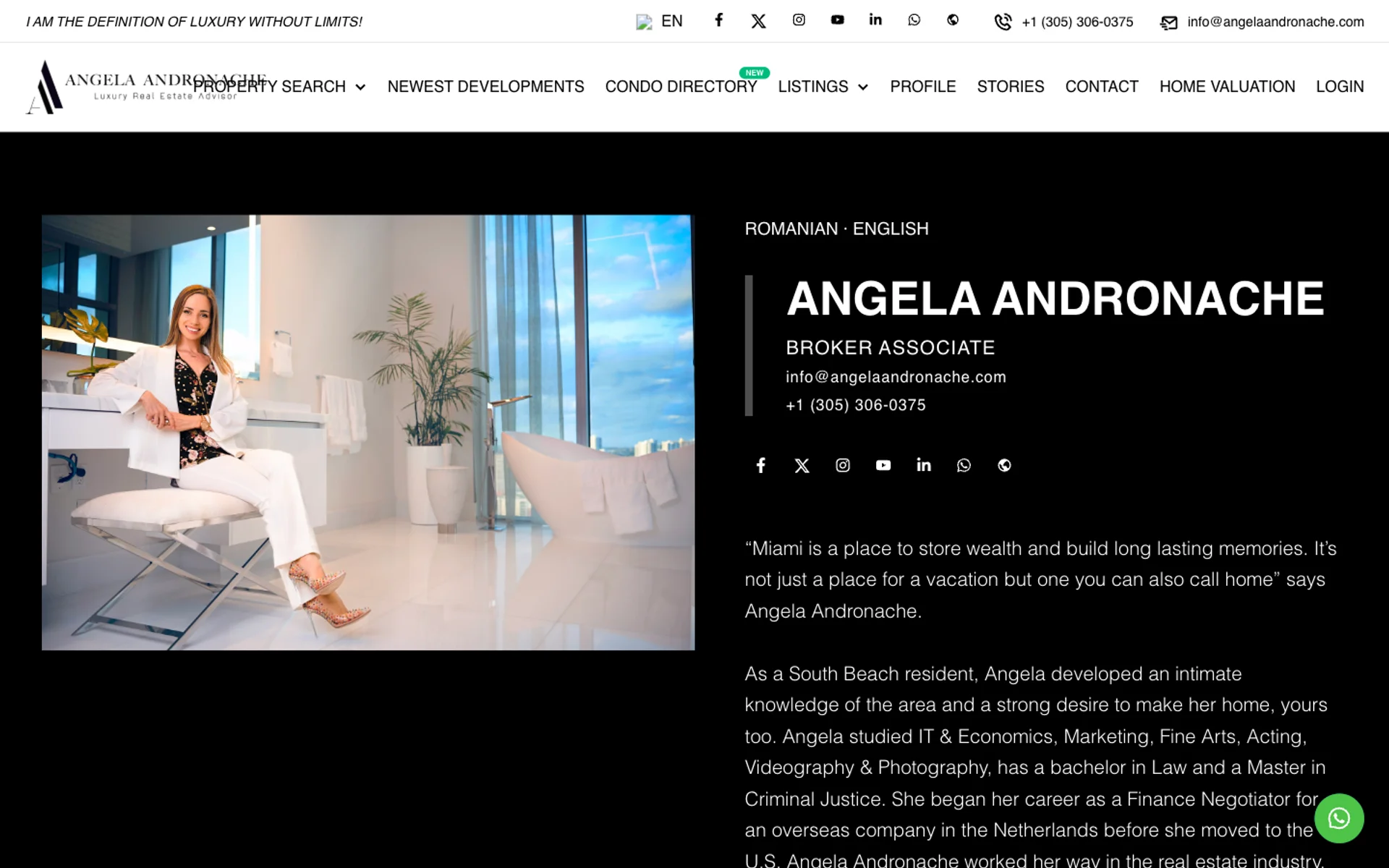
Here's a real Panda IDX profile page in action — every section below is fully customizable from the dashboard:
Design your About section
The About section is the visual anchor of your profile — your headshot, bio, and the layout settings that frame them.
Step 1: Open the Profile Page editor
In the dashboard sidebar click Pages, then click Profile Page. The editor shows your headshot upload, design controls, and bio at the top of the page.
Step 2: Upload your headshot and configure layout
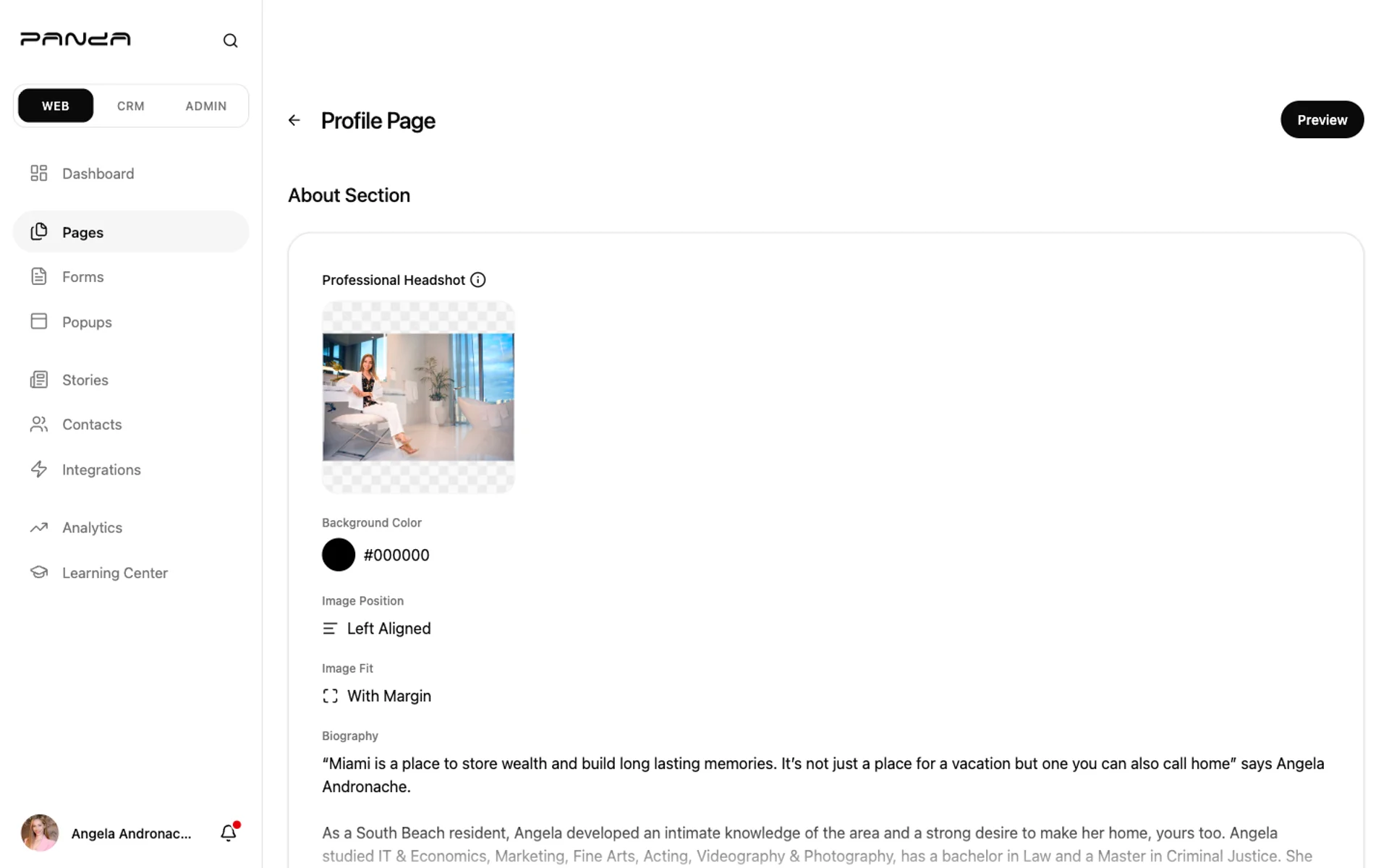
Drop your headshot into the Professional Headshot area (recommended 800×1200px, 2:3 ratio). Pick a Background Color, set Image Position (Left or Right), and choose Image Fit (Full Size or With Margin).
Step 3: Write your biography
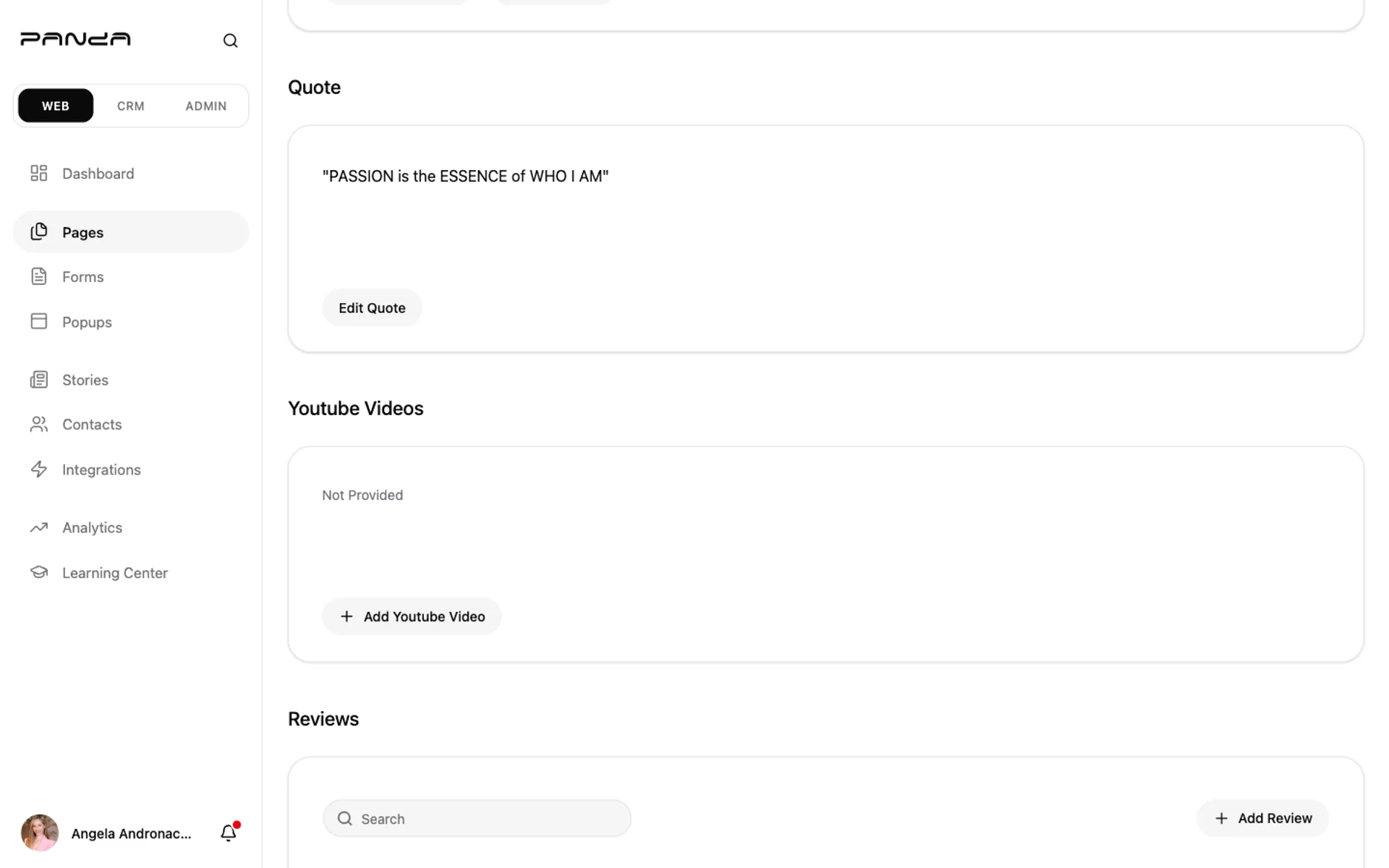
Scroll to Biography and click Edit Biography. Write 150–250 words in first person — experience, specialties, neighborhoods you serve, and a clear call to action.
A good bio is specific, not generic. Mention concrete numbers (years in business, transactions closed) and one personal detail that humanizes you — both build trust faster than adjectives like "passionate" or "dedicated."
Add quote, videos, and reviews
Beyond the bio, three sections turn a profile from "informational" into "convincing": a personal quote, YouTube videos, and client reviews.
Step 1: Add a personal quote
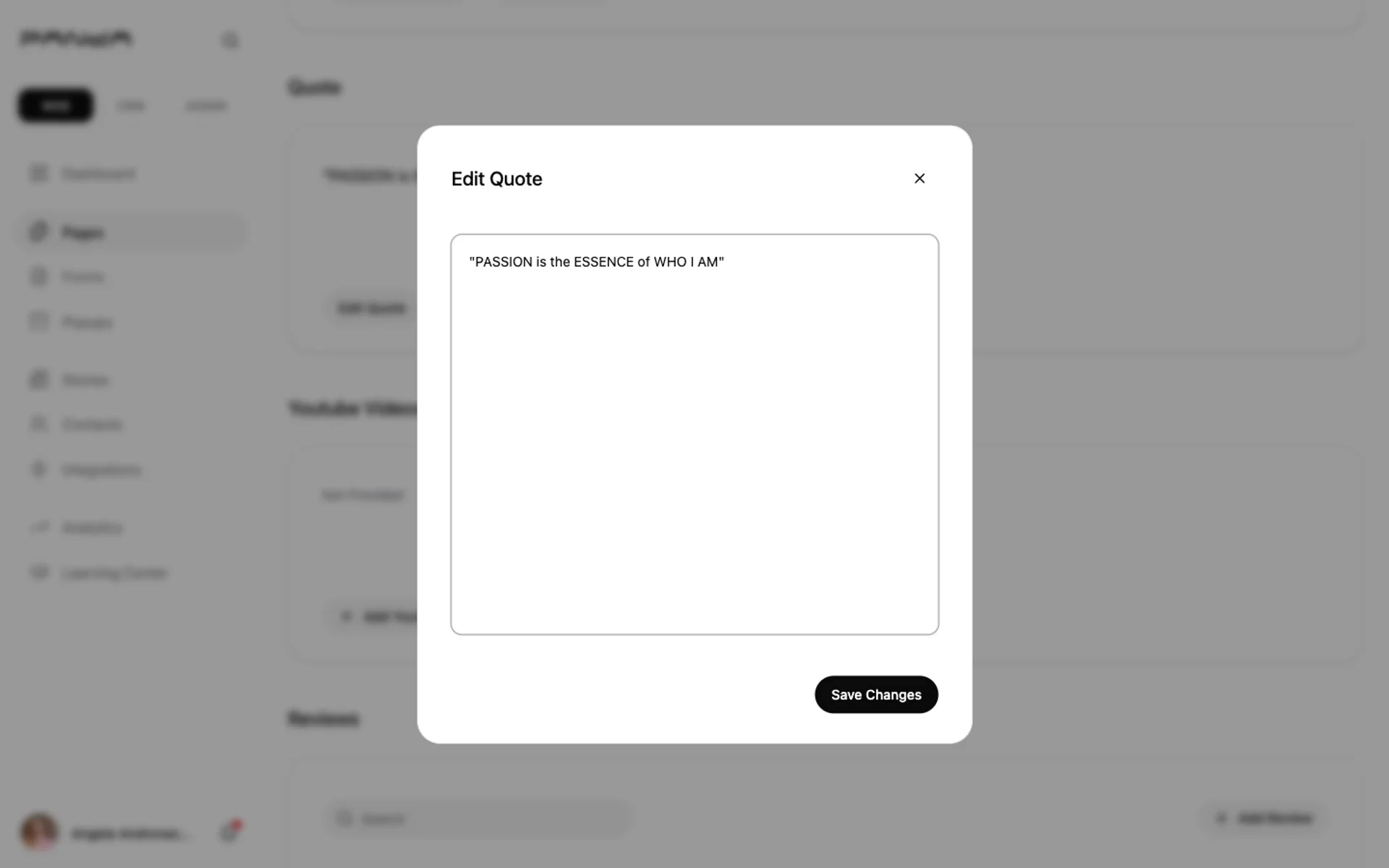
Scroll to the Quote section and click Edit Quote. Type a short tagline that captures your point of view — it renders as a large italic banner on your live profile.
Step 2: Embed a YouTube video
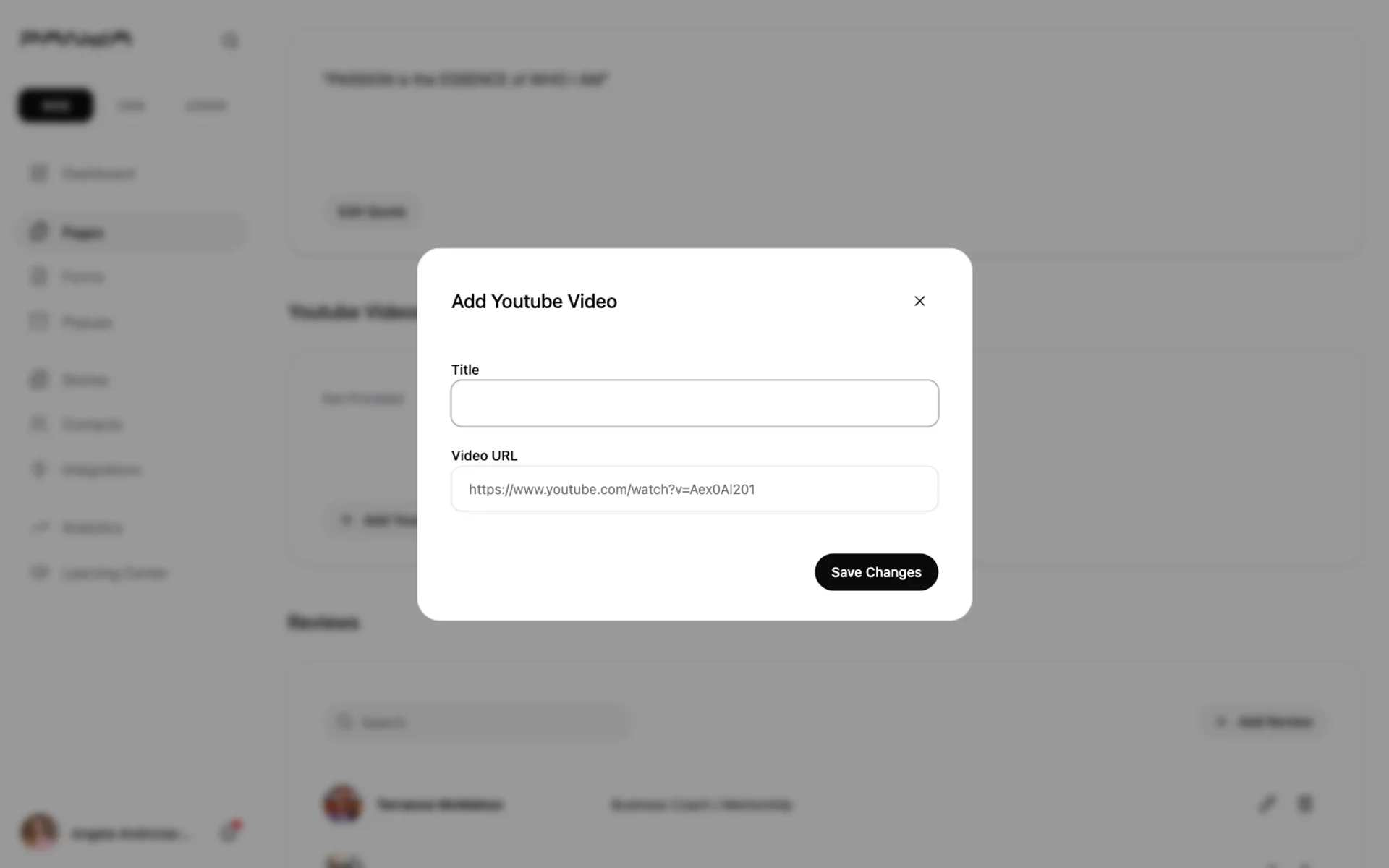
Scroll to Youtube Videos and click Add Youtube Video. Type a Title and paste your Video URL — Panda IDX extracts the thumbnail and renders an embedded player on your profile.
Step 3: Add a client review
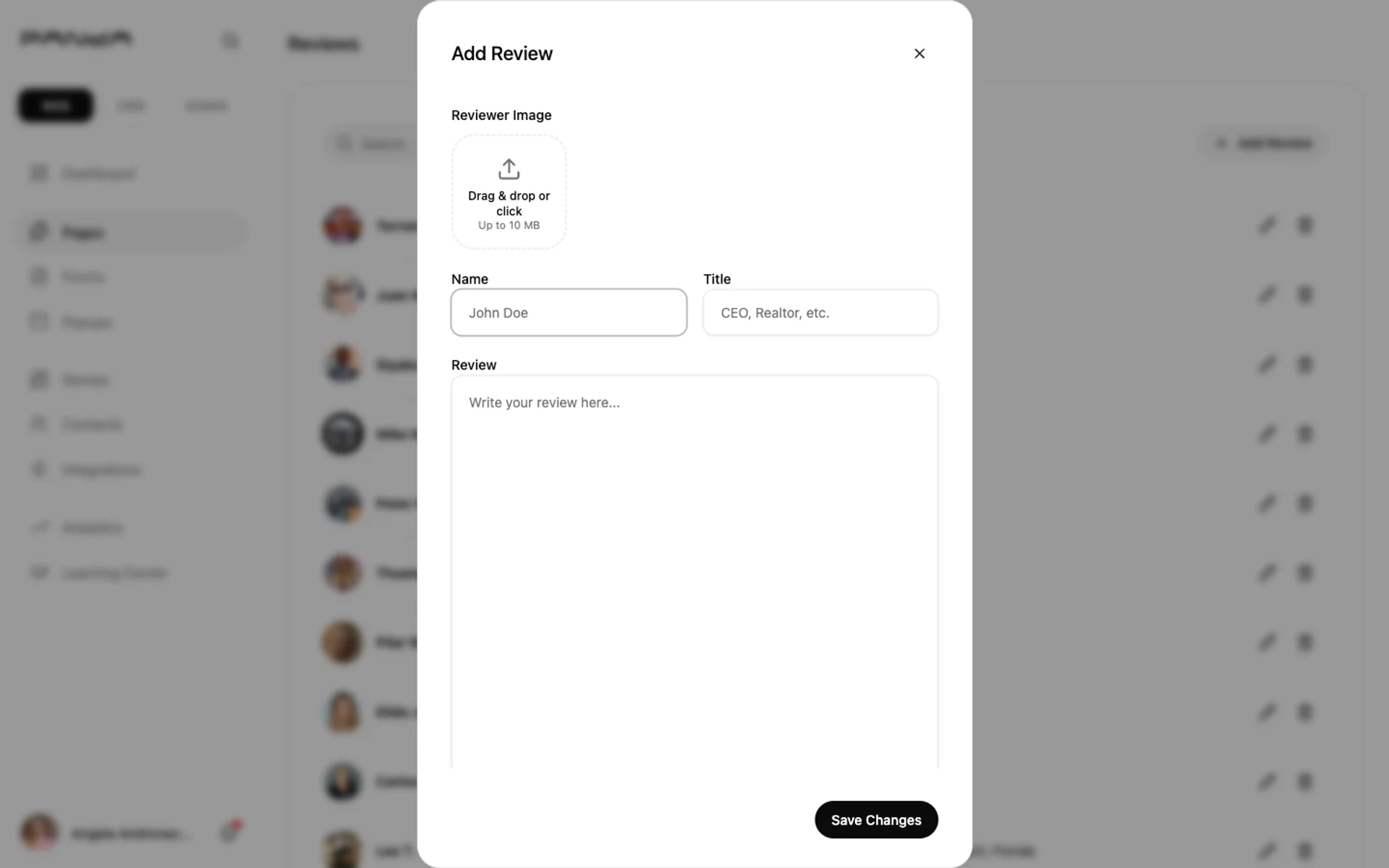
Scroll to Reviews and click Add Review. Upload the Reviewer Image, fill in Name and Title (e.g., "CEO, Acme Corp"), and paste the full Review text. Save — it appears as a 5-star card live.
Step 4: Manage your existing reviews
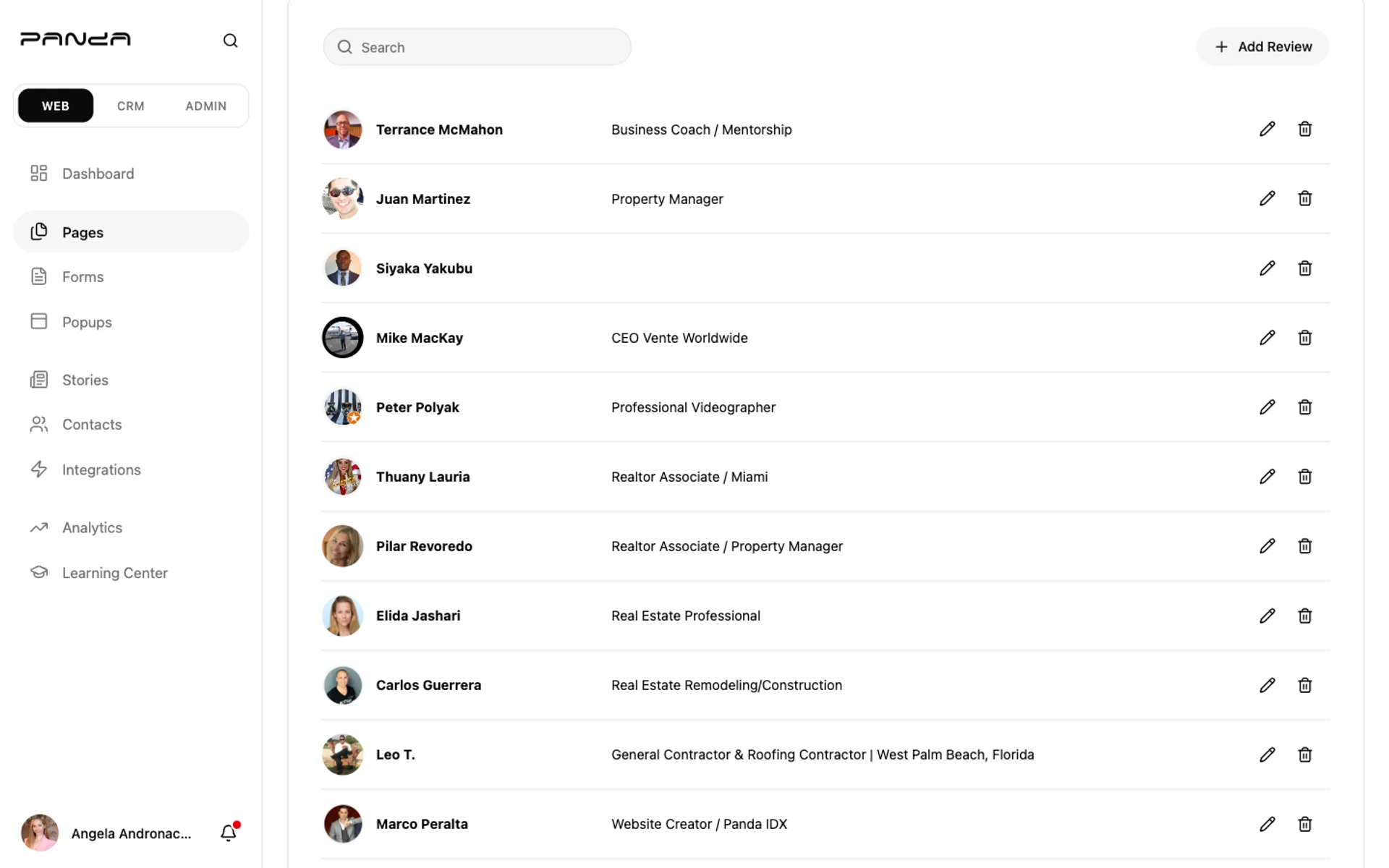
Reviews appear in a list with edit (pencil) and delete (trash) buttons next to each one. Use the Search field to find a specific reviewer if you have many.
Aim for at least 5 reviews before launching your profile. Reviewers don't need to be other agents — past clients, business partners, contractors you've worked with, and community references all build credibility.
Preview your live profile
Once your About section, quote, videos, and reviews are in place, preview the public-facing page to see exactly how visitors experience it.
Step 1: Open the live preview
Click Preview in the top-right of the Profile Page editor. Your browser opens your profile at yoursite.com/profile — the same URL visitors and Google see.
Step 2: Check the quote and reviews sections
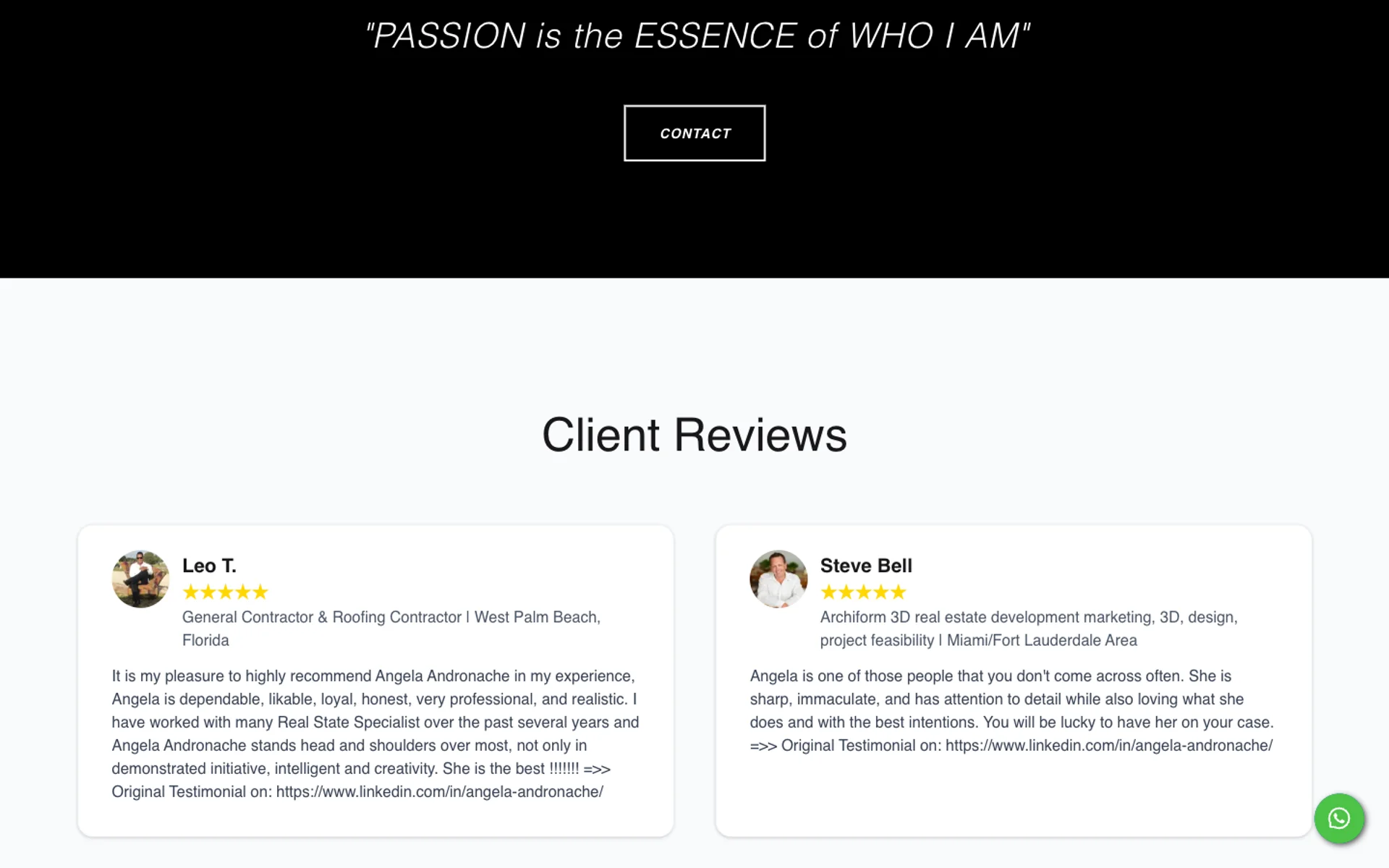
Scroll past your bio. The quote renders as a large italic banner with a Contact call-to-action. Below it, your client reviews appear as 5-star cards in a responsive grid.
Test your profile on mobile too. Most visitors will arrive on a phone — the same hero, quote, and review cards that look balanced on desktop should still feel readable at 390px wide.
Frequently asked questions
How do I create a real estate agent profile page in Panda IDX?
In your dashboard, go to Pages → Profile. Upload your headshot, design the About section (background color, image position, image fit), write your bio, add a personal quote, embed YouTube videos, and add client reviews. Click Preview to see exactly how visitors will see it live.
What should I include in my real estate agent bio?
Years of experience, neighborhoods or property types you specialize in, one personal detail that builds rapport, and a clear call to action. Keep it to 150–250 words. First person feels more approachable and converts better than third person — write the way you'd introduce yourself in person.
What size should my professional headshot be?
Upload a portrait image at least 800×1200 pixels (2:3 aspect ratio recommended). Use JPG or PNG under 5 MB. A clean light background with your face filling at least 60% of the frame reads clearly at thumbnail size on listing detail pages and Google search results.
Can I add YouTube videos to my profile?
Yes. Go to Pages → Profile → Youtube Videos and click Add Youtube Video. Enter a title and paste the full YouTube URL — Panda IDX extracts the thumbnail automatically and renders an embedded player on your live profile. Add as many videos as you want; they appear as a clickable grid.
How do client reviews work on my profile page?
Reviews are stored with the reviewer's photo, name, title, and full review text. They render as 5-star cards in a responsive grid on your live profile. You can add, edit, and delete reviews from the dashboard anytime — changes appear instantly. Aim for 5+ reviews before launching for credibility.